Stop Evaluating AI Features by Vibes: A Practical Testing Framework

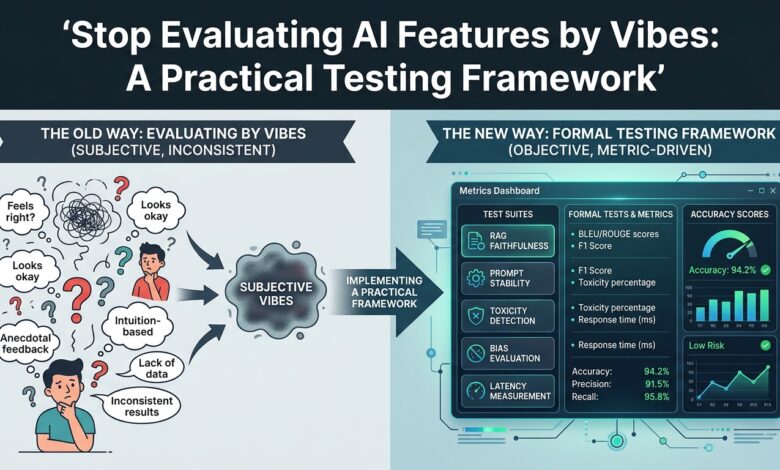
Table of Contents
- The Problem With Manual Spot-Checking
- Why Traditional Testing Does Not Transfer
- Building Your First Evaluation Set
- Three Categories of Metric
- Using a Model as a Judge
- Regression Testing Prompts
- Production Signals That Matter
- Common Pitfalls
- Conclusion
- Frequently Asked Questions
Key takeaway: You cannot improve what you cannot measure, and “it looks better to me” is not a measurement. A modest evaluation set of 100 examples with defined pass criteria beats unlimited manual inspection.
The Problem With Manual Spot-Checking
The typical workflow for developing an AI feature looks like this. Write a prompt. Try five inputs. Adjust the prompt. Try the same five inputs. Looks better. Ship.
This process has a specific and severe failure mode: you are optimising against the examples you happen to have looked at, with no visibility into what your changes broke elsewhere.
The dynamic is worse than ordinary overfitting because prompt changes have non-local effects. Adding an instruction to be more concise can eliminate necessary detail in a category of input you never tested. Adding a formatting requirement can degrade reasoning quality, because the model spends attention on presentation. Fixing one failure mode routinely introduces another, and manual spot-checking cannot see it happening.
Teams discover this in production. The feature that tested well produces poor output for a use case nobody anticipated, and because there is no baseline measurement, nobody can say whether the last three prompt changes helped or hurt overall.
The fix is not sophisticated. It is a fixed set of examples with expected properties, run automatically on every change. The barrier is not technical difficulty — it is that building the evaluation set feels like overhead compared to shipping.
Why Traditional Testing Does Not Transfer
Engineers arriving from conventional software testing encounter three genuine obstacles, and each requires an adjustment rather than abandonment.
Outputs are non-deterministic. The same input can produce different outputs across calls. Exact-match assertions fail immediately. The adjustment is to assert on properties rather than exact strings: does the output contain the required field, is it valid JSON, does it stay under the length limit, does it avoid the forbidden claim.
Correctness is often graded rather than binary. A summary is not simply right or wrong — it can be accurate but incomplete, or complete but poorly organised. The adjustment is to accept scores rather than pass/fail for subjective dimensions, and to track score distributions across a set rather than individual results.
Expected outputs are expensive to author. Writing the ideal response for 200 test cases is substantial work. The adjustment is that you frequently do not need ideal outputs. Asserting properties, comparing two candidate outputs pairwise, or checking against a rubric all avoid the need for a gold answer.
What does transfer is the core discipline: a fixed set of inputs, run automatically, with results compared against a recorded baseline. That structure is what turns prompt engineering from guesswork into engineering.
Building Your First Evaluation Set
A hundred examples is enough to start and dramatically better than five. Where to source them:
Real production inputs. The highest-value source by a wide margin. Sample actual user requests, prioritising diversity over volume. If you have not launched, use whatever inputs your internal testing produced.
Known failure cases. Every time someone reports bad output, that input goes into the set permanently. This is the single most valuable habit in the entire practice — it converts each incident into a permanent regression guard.
Edge cases you can enumerate. Empty input, extremely long input, input in an unexpected language, input containing instructions that attempt to override your prompt, ambiguous requests, requests outside the feature’s scope.
Adversarial inputs. Attempts at prompt injection, requests for content the feature should decline, inputs designed to elicit confident answers to unanswerable questions.
Structure each case with the input, what should be true of the output, and what must never appear:
{
  "id": "summ-042",
  "input": "...source document...",
  "must_include": ["revenue figure", "date range"],
  "must_not_include": ["speculation about future results"],
  "max_words": 150,
  "requires_valid_json": true,
  "notes": "From incident #218 - model invented a growth percentage"
}
That notes field matters more than it appears. Six months later, nobody remembers why a case exists, and cases whose purpose is forgotten get deleted when they become inconvenient.
Three Categories of Metric
Conflating these produces confusing results, because they fail independently and require different remedies.
Deterministic checks. Cheap, fast, and unambiguous. Is the output valid JSON? Does it contain the required fields? Is it under the length limit? Does it avoid forbidden terms? Does it match the expected schema? These should run on every case and gate deployment outright — a malformed response is a bug regardless of content quality.
Reference-based scores. Compare output against a known-good answer. Useful when a correct answer genuinely exists: extraction tasks, classification, question answering over a fixed corpus. Exact match for structured extraction, semantic similarity for free text. Less useful for open-ended generation where many good answers exist.
Judged quality scores. For dimensions no assertion captures: helpfulness, tone, coherence, appropriate level of detail. Either human rating or another model applying a rubric. Expensive per example, so run on a subset.
A practical allocation runs deterministic checks on all 100 cases every time, reference-based scoring on the 40 cases where a reference exists, and judged evaluation on a rotating sample of 20. This keeps the loop fast enough to run on every prompt change while still measuring what deterministic checks cannot see.
Using a Model as a Judge
Having a language model grade outputs is now standard practice, and it works considerably better with a few specific precautions.
Give it a rubric, not a vague question. “Is this response good?” produces noise. A rubric with defined levels produces usable signal:
Score the response 1-5 on factual grounding:
5 - Every claim is directly supported by the source
4 - All claims supported; minor unsupported phrasing
3 - Mostly supported; one unsupported claim
2 - Multiple unsupported claims
1 - Substantially fabricated

Source: {source}
Response: {response}

Output only a JSON object: {"score": N, "unsupported_claims": [...]}
Prefer comparison to absolute scoring. Models are considerably more reliable at “which of these two is better” than at “rate this 1 to 5.” If you are comparing a prompt change against a baseline, pairwise comparison gives cleaner signal.
Randomise position in comparisons. Judges exhibit position bias, favouring whichever response appears first. Alternate the order and average.
Validate the judge against humans. Rate 30 examples yourself, compare to the judge’s ratings, and measure agreement. If agreement is poor, the rubric needs work. Skipping this step means you do not know whether your metric measures anything.
Never use the same model to generate and judge without care. Models show measurable preference for their own outputs. A different model as judge, or human validation of the judge, mitigates this.
Regression Testing Prompts
Once an evaluation set exists, the workflow becomes recognisable to any engineer.
Version prompts as files in the repository, not strings buried in application code or edited in a vendor console. A prompt is behaviour-defining logic and belongs under the same version control and review process as code.
Run the evaluation set on every prompt change, in CI, and report the delta against the current baseline. The critical output is not the aggregate score — it is the list of cases whose status changed. An aggregate that improved by two points while three previously-passing cases now fail is usually a bad trade, and only per-case reporting reveals it.
Store results over time. The question “when did this start failing?” is answerable only with history, and the answer is frequently a prompt change three weeks earlier that nobody connected to the symptom.
Treat model version upgrades as changes requiring the same evaluation. A new model version can silently alter behaviour your prompt depended on. Providers do not know what your prompt relies on; your evaluation set does.
Production Signals That Matter
Offline evaluation catches regressions. Production tells you whether the feature works for real users, and the two are not substitutes.
Signals worth instrumenting:
| Signal | What it reveals |
|---|---|
| Explicit thumbs up/down | Direct quality feedback, low volume |
| Regeneration rate | Users rejecting the first output |
| Edit rate on generated text | Output close but not sufficient |
| Abandonment after generation | Output unhelpful enough to give up |
| Latency at p95 | Whether the feature is usable under load |
| Deterministic check failures | Malformed output reaching users |
Regeneration rate deserves particular attention. It requires no user effort to produce, correlates strongly with dissatisfaction, and arrives at far higher volume than explicit feedback. A rising regeneration rate is an early warning that something changed.
Every negative signal should be capturable into the evaluation set with minimal friction. A one-click path from “user rated this poorly” to “this input is now a permanent test case” is what makes evaluation improve continuously rather than decaying after the initial effort.
Common Pitfalls
Evaluating on examples used to develop the prompt. This measures memorisation. Hold out a set you never look at while iterating.
Only testing the happy path. Adversarial inputs, out-of-scope requests, and malformed data are where AI features fail most visibly.
Aggregate scores without per-case reporting. An improved average hiding new failures is the most common way regressions ship.
Trusting an unvalidated judge. If you have not compared judge ratings to human ratings, you do not know what your numbers mean.
Prompts not in version control. Behaviour-defining logic edited outside review, with no history, is unmaintainable.
Never updating the set. An evaluation set that does not grow with reported failures stops reflecting reality within months.
Conclusion
The gap between teams that ship reliable AI features and teams that ship surprises is not model access or prompt sophistication. It is measurement.
Start smaller than feels legitimate. Fifty real inputs with defined expected properties, run automatically, reporting which cases changed status — that alone catches the majority of regressions that would otherwise reach users. Add a validated judge for the subjective dimensions assertions cannot capture. Wire production feedback back into the set so it improves rather than decays.
The habit that matters most is the cheapest one: every reported failure becomes a permanent test case. Teams that do this consistently accumulate an evaluation set that reflects their actual failure modes, which is worth more than any generic benchmark.
Frequently Asked Questions
How many evaluation examples do I need? Fifty is enough to be useful, 100 to 200 is a good working range for most features. Beyond that, additional examples add diminishing value relative to improving example diversity and quality.
How do I evaluate outputs when no correct answer exists? Assert properties rather than content — required fields, length bounds, grounding in the source, absence of forbidden claims. For subjective quality, use pairwise comparison against a baseline rather than absolute scoring.
Is model-as-judge reliable enough to gate deployment? For relative comparisons against a baseline, generally yes, provided you have validated agreement with human ratings. For absolute quality gates, it is safer as a signal to investigate than as an automatic block.
Should evaluation run on every commit? Deterministic checks, yes — they are fast and cheap. Judged evaluation on a sample is reasonable per pull request. A full run including the complete judged set fits better as a nightly job.
How do I handle non-determinism in results? Set temperature to zero where the task permits it, which reduces variance considerably. Where you cannot, run each case several times and compare distributions rather than individual outputs.
What about testing multi-turn conversations? Script the conversation as a fixed sequence of user messages and evaluate the final state plus any per-turn requirements. This is harder than single-turn and worth doing for conversational features, since context-handling bugs only appear across turns.
Does this apply if I am only using a vendor API? Entirely. You control the prompt, the retrieved context, the parameters, and the output handling — all of which affect quality and all of which can regress. Not training the model does not exempt you from evaluating the system you built around it.